Zoom webinar attendance in LearnDash
If your live sessions run as Zoom webinars, LearnDash has no idea who attended. Zoom keeps the attendee list, LearnDash keeps the course, and someone has to connect the two. Here is how webinar attendance differs from meeting attendance, the manual way to get it into LearnDash, and how to make it automatic.
Short version: LiveClass Sync can run any LearnDash topic as a Zoom webinar. After the session it reads the attendee list from Zoom, matches people to students by email and completes the topic for everyone who stayed long enough. Watch the one-minute demo.
Meeting or webinar: which one fits a course?
Both are Zoom sessions, but they behave differently:
- Meeting: everyone can turn on their camera and microphone. Best for small, interactive classes, workshops and coaching.
- Webinar: the host and panelists present; attendees watch, ask questions in Q&A and answer polls. Best for lectures, large CPD sessions and anything where 100 people talking at once would be chaos.
Webinars are not part of a standard Zoom plan. You need the Zoom Webinar add-on and a host with a webinar licence. Without them Zoom refuses to create the webinar.
What Zoom records for a webinar
For each webinar Zoom keeps an attendee report in the web portal, under Reports and the webinar usage reports. It lists each attendee’s name, email, join and leave times and minutes attended. As with meetings, the report is built after the webinar ends, and one person can have several rows if they dropped out and came back or joined from two devices.
Panelists are listed separately from attendees, so they do not inflate your attendance, but remember to leave them out if you combine lists. For meeting reports and their quirks, see Zoom attendance report after a meeting.
The manual route
- After the webinar, open the attendee report in the Zoom web portal and export it as a CSV.
- Add up the minutes per email address, so rejoins count as one person.
- Compare each total with your minimum, for example 80% of the session.
- Find each student in LearnDash and mark the topic complete for those who qualify.
- Keep the CSV somewhere safe, in case anyone asks for proof later.
It works, and for one webinar a month it is fine. With 50 attendees and a weekly series it becomes an hour of copying after every session. Spreadsheet details are in how to export a Zoom participant list.
Where the manual route goes wrong
- Different emails. People register for the webinar with a work email and enrol in your course with a personal one. Then nothing matches.
- Rejoins. Counting the first row only makes people who reconnected look like they left early.
- Restarted webinars. If the host ends the webinar by mistake and starts it again, Zoom treats it as two sessions with two reports.
- Reports that expire. Zoom keeps reports for a limited time. For CPD or compliance, the record has to live somewhere you control.
Making it automatic with LiveClass Sync
LiveClass Sync is a LearnDash add-on. It supports webinars as well as meetings:
- In the LearnDash topic editor, turn on Zoom and choose Webinar as the session type. Set the date, time, duration and the minimum attendance for completion.
- The plugin creates the webinar in Zoom. Students join from inside the LearnDash topic.
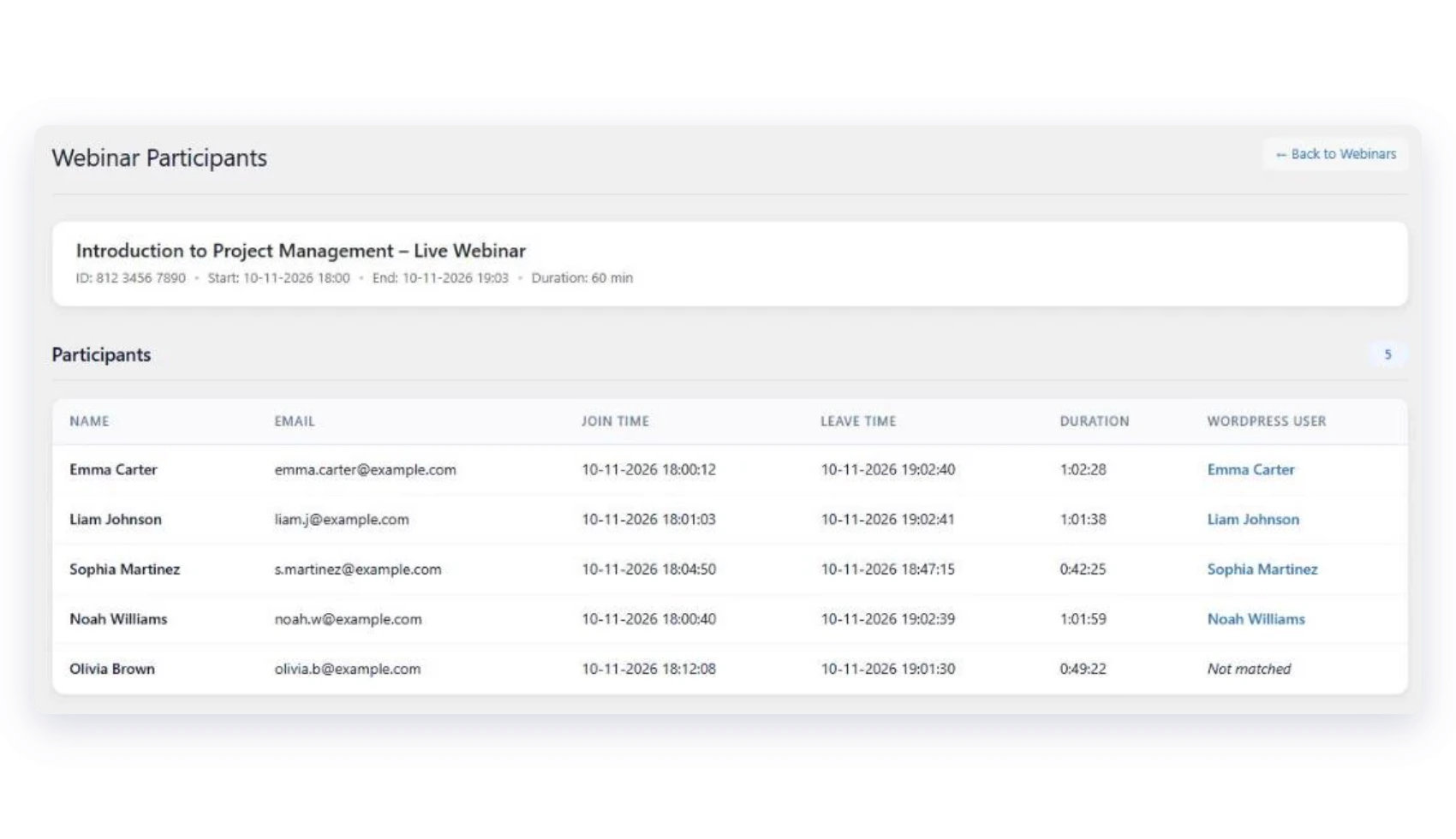
- When the webinar ends, the plugin reads the attendee list from Zoom, matches people to student accounts by email and adds up rejoins and second devices.
- Students at or above the minimum get the topic marked complete. If the webinar was restarted, the attendance of every run is combined.
- Join and leave times stay in your WordPress database, and you can export any session to CSV.
Setting it up
Webinars use the same Zoom app as meetings, with a few extra permissions. Add the webinar scopes and the webinar.started and webinar.ended events to your Zoom app, then disconnect and reconnect Zoom in the plugin settings. The exact list is in the documentation. If you only run meetings, you do not need any of this.
Honest limits
- You need the Zoom Webinar add-on and a webinar-licensed host. If either is missing, Zoom says so and the plugin shows Zoom’s message.
- The plugin does not use Zoom’s registration form. Students join from the LearnDash topic and are matched by their account email. If you rely on Zoom registration pages, this is a different workflow.
- A topic’s session type is fixed once Zoom has created the session. To switch between meeting and webinar, add a new topic.
- It is built for live sessions inside a course, not for stand-alone promotional webinars with no course behind them.
More information
A one-minute demo is on the homepage. If you train professionals, see CPD attendance tracking for live Zoom training. To choose a sensible minimum, see how to set a minimum attendance requirement. To compare LearnDash tools, see Best LearnDash Zoom plugins in 2026.