Documentation
Everything needed to connect Zoom to LearnDash, from installation to your first live session. Setup takes about fifteen minutes.
Quick start
If you have your Zoom account ready, this is the whole path:
- Install the plugin and activate your licence
- Create a Zoom OAuth app and add the six required scopes
- Turn on event subscriptions so attendance is reported back
- Connect your Zoom account in WordPress
- Enable Zoom on a LearnDash topic and set your completion rule
Before you begin: you need a paid Zoom plan (Pro or higher) and admin rights on that Zoom account.
1. Requirements & installation
Before you start
- WordPress 6.0 or higher
- PHP 8.1 or higher
- LearnDash installed and active
- A paid Zoom plan (Pro or higher). Attendance tracking relies on Zoom’s participant reports, which are not available on Basic accounts.
- Your site’s domain, for licence registration and the OAuth redirect
Install and activate the plugin
- Go to Plugins → Add New → Upload Plugin
- Upload the
.zipfile from your purchase - Click Install Now, then Activate
- A new LiveClass Sync menu item appears
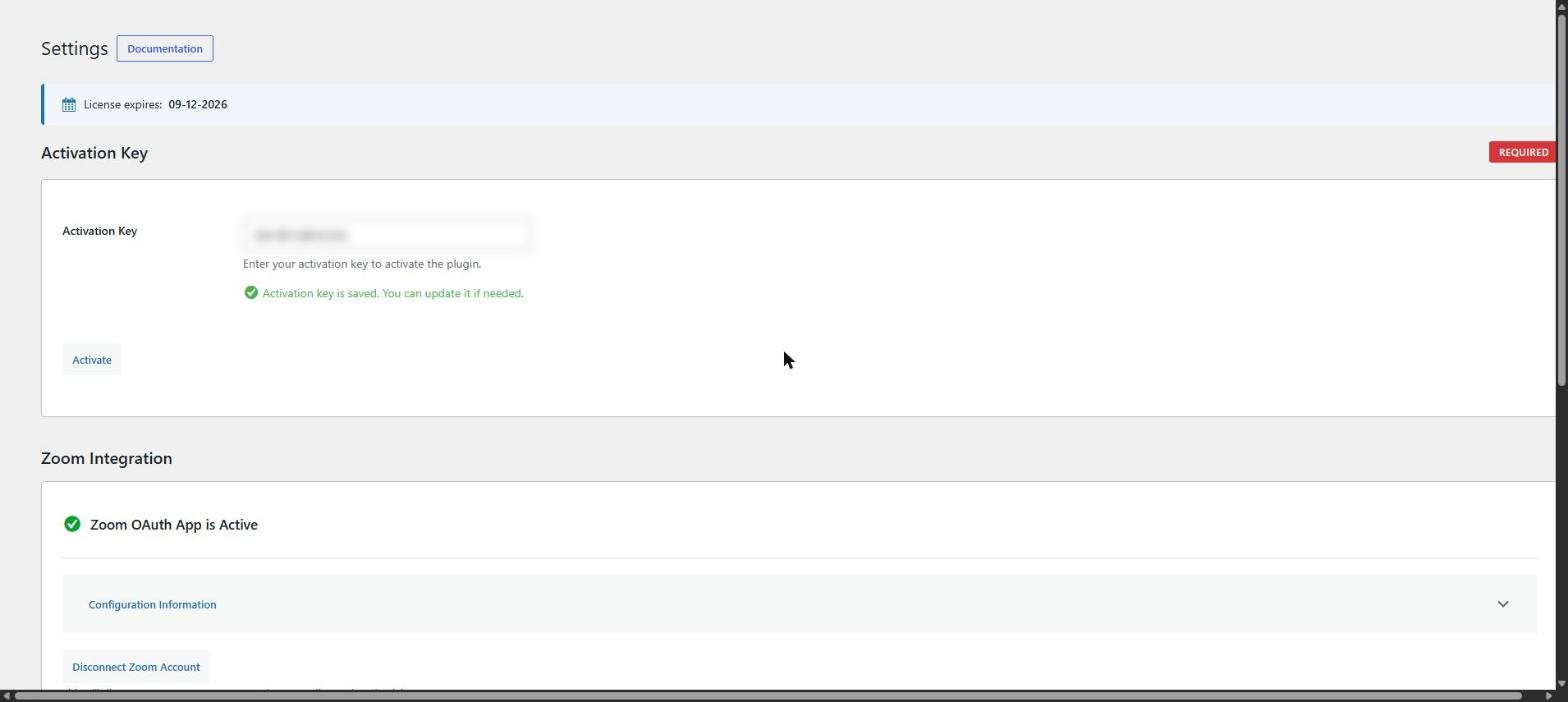
Activate your licence
- Go to LiveClass Sync → Settings → Activation Key
- Enter your licence key
- Click Activate License and wait for confirmation
Your licence must be active before any Zoom features will work.
2. Connect Zoom
Six steps, done once. After this, meetings are created from inside LearnDash.
What Zoom account you need
You need a Zoom account on a paid plan, not Basic or Free, if you want to host meetings beyond the free-plan limit or use features above the free tier.
Just as important: the Zoom user authorising the app must have admin-level privileges, or be the account owner. Account-level and Server-to-Server OAuth apps with broad scopes can only be authorised by account admins, or by users with marketplace and developer permissions.
Step 1 — Create your Zoom OAuth app
- Log in to the Zoom Marketplace as the account owner or an admin
- Go to Develop → Build App
- Choose OAuth
- Name the app and click Create
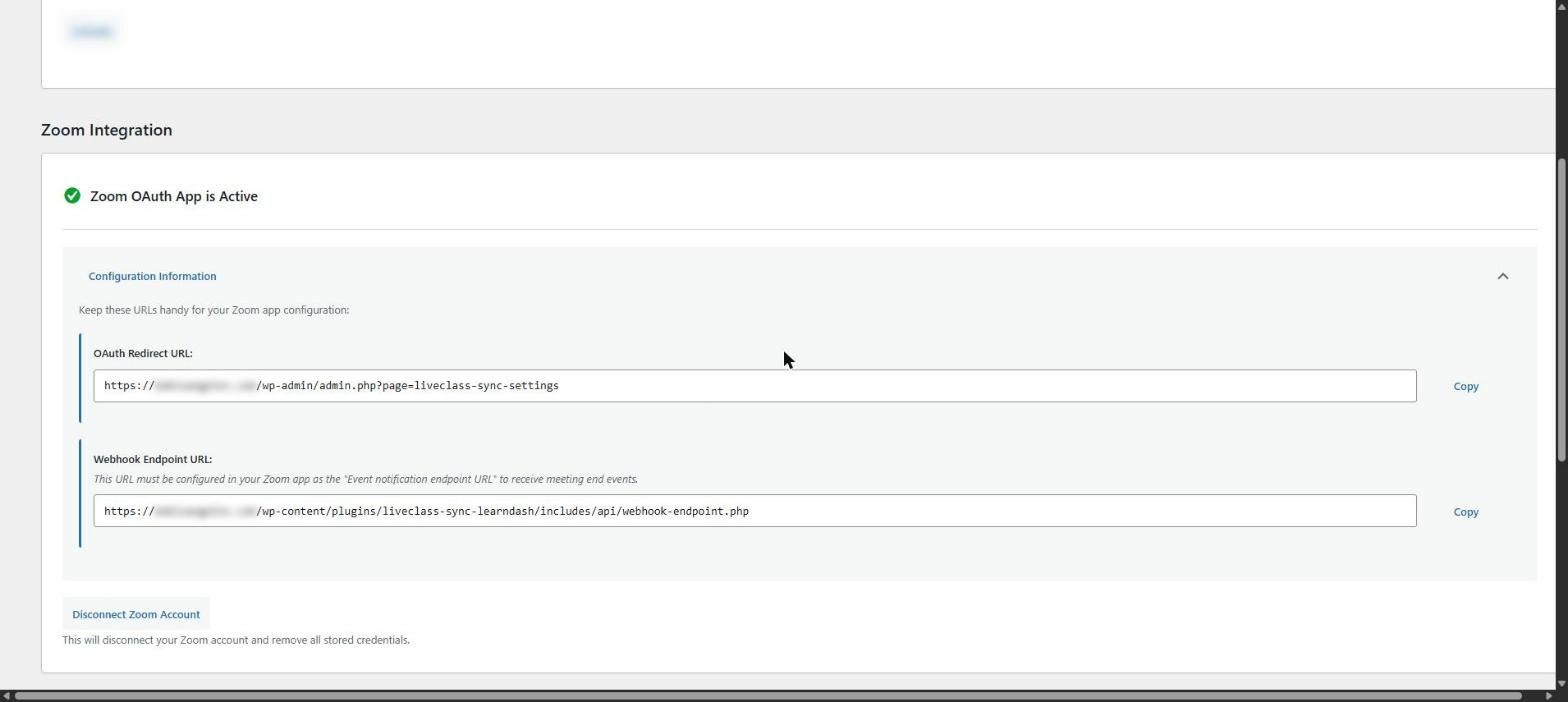
Step 2 — Configure redirect and webhook URLs
- Redirect URL (for OAuth): paste the URL shown in the plugin settings
- Webhook endpoint (for event subscriptions): paste the plugin’s webhook URL
- Copy the Secret Token — you will need it in the plugin
Step 3 — Add OAuth scopes
All six scopes are required. Missing any one of them causes errors later that are hard to trace back to this screen.
| Scope | What it does |
|---|---|
meeting:write:meeting:admin | Creates meetings from LearnDash topics |
meeting:read:meeting:admin | Reads meeting details back into WordPress |
meeting:update:meeting:admin | Syncs date and time changes made in LearnDash |
meeting:delete:meeting:admin | Removes the Zoom meeting when a topic is deleted |
user:read:user:admin | Identifies the connected Zoom account |
report:read:list_meeting_participants:admin | Retrieves attendance after each session |
If the scopes do not appear, the integration may not support automatic meeting creation or management on that account type.
Changing scopes later? Adding scopes to the app does not affect an existing connection. A token keeps whatever was granted when it was authorised, and refreshing preserves it. After changing scopes you must go to LiveClass Sync → Settings → Disconnect Zoom Account, then connect Zoom again.
Step 4 — Enable event subscriptions
This is what delivers attendance back to WordPress. Without it, meetings are created but nothing is recorded.
- Turn on Event Subscriptions
- Add the webhook URL from the plugin settings
- Subscribe to at least
meeting.startedandmeeting.ended
Step 5 — Enter your credentials in WordPress
- Go to LiveClass Sync → Settings
- Paste the Client ID, Client Secret and Secret Token
- Save
Step 6 — Connect your Zoom account
- Click Connect Zoom
- Approve the permissions when prompted
- Return to WordPress — you should see a confirmation, unless scopes are missing
Optional — Meeting SDK for browser join
Only needed if you want students to join inside the page rather than in the Zoom app. Standard live classes work with the single OAuth connection above.
- Build a Meeting SDK app in the Zoom Marketplace
- Use the same redirect URL
- Copy the SDK Client ID and Secret into the plugin settings and save
3. Using it in LearnDash
Create a Zoom meeting on a topic
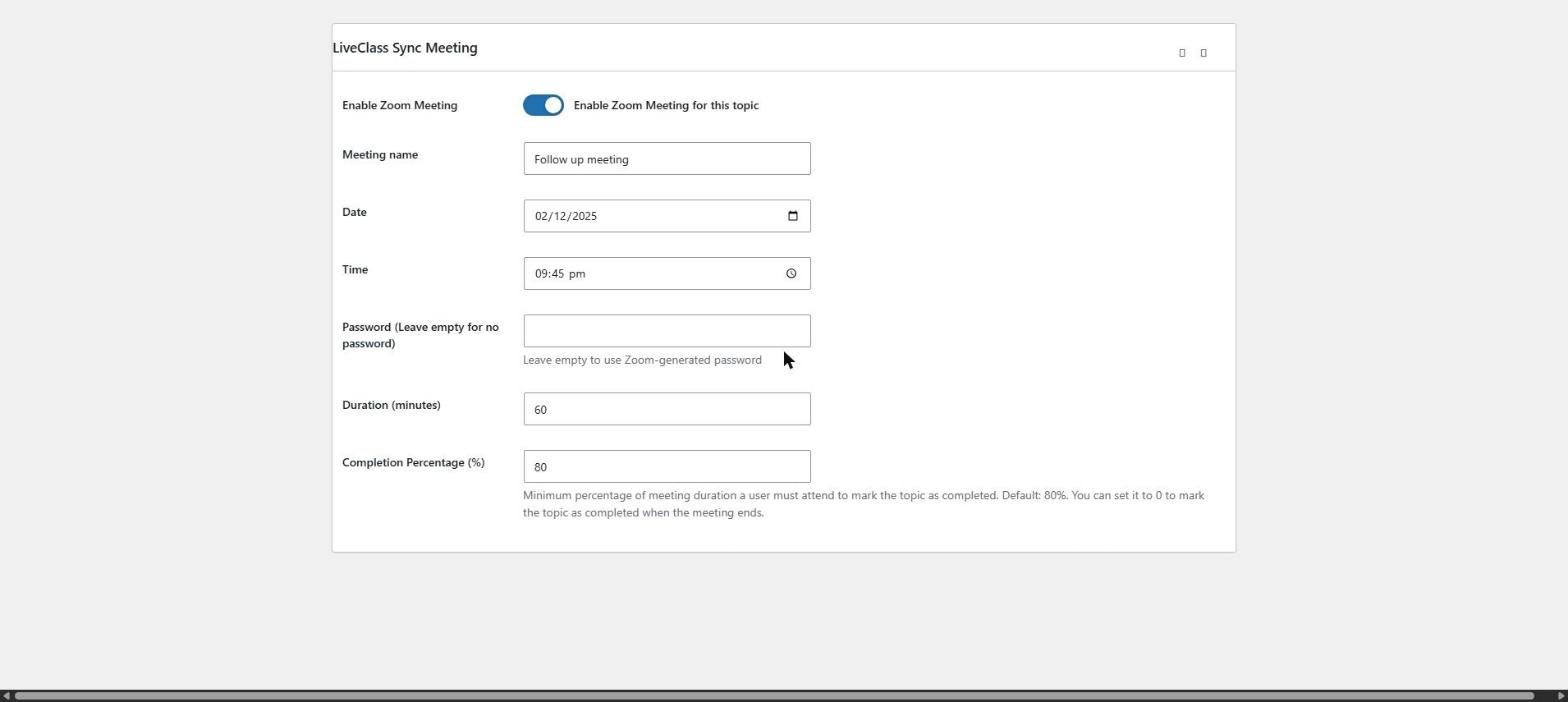
- Edit or add a Topic, then scroll to LiveClass Sync Meeting
- Toggle Enable Zoom Meeting, then fill in the meeting name, date, time, duration and an optional password
- Save or update the topic
The plugin creates the Zoom meeting automatically and embeds the join link in the topic.
Update or delete a meeting
- Editing the topic and clicking Update pushes the changes to Zoom automatically
- Deleting the topic deletes the meeting on Zoom
Completion percentage explained
The Completion Percentage field decides how much of a session a student must attend before the topic is marked complete.
| Setting | The student must |
|---|---|
| 80% (default) | Attend 80% of the meeting duration |
| 100% | Attend the entire meeting |
| 50% | Attend half the meeting |
| 0% | Nothing — the topic completes when the meeting ends, regardless of attendance |
Example. A meeting runs for 60 minutes with completion set to 80%. A student must attend at least 48 minutes for the topic to be marked complete.
Attendance is consolidated by email address, so a student who joins from a phone and then a laptop is counted once and their time is combined.
4. Managing meetings
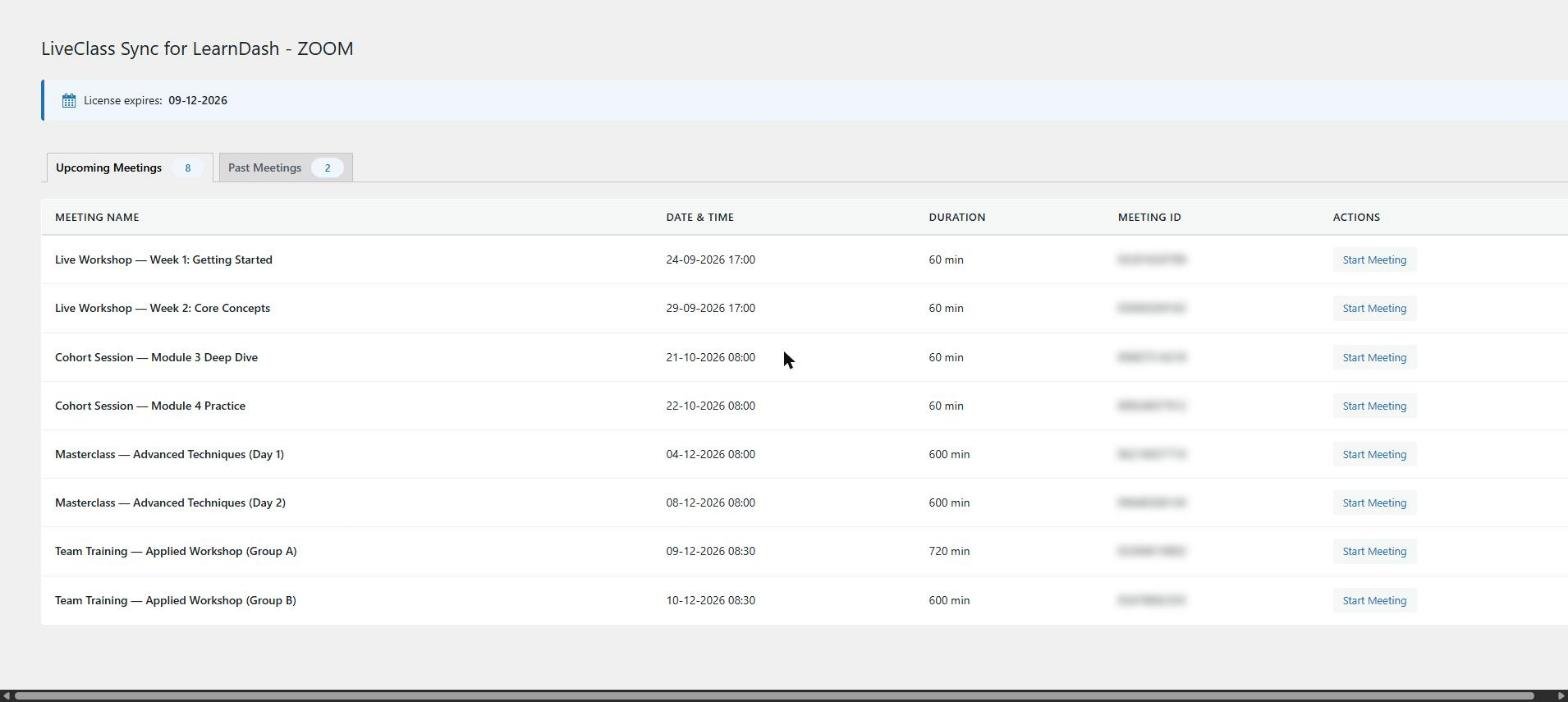
View and manage all meetings
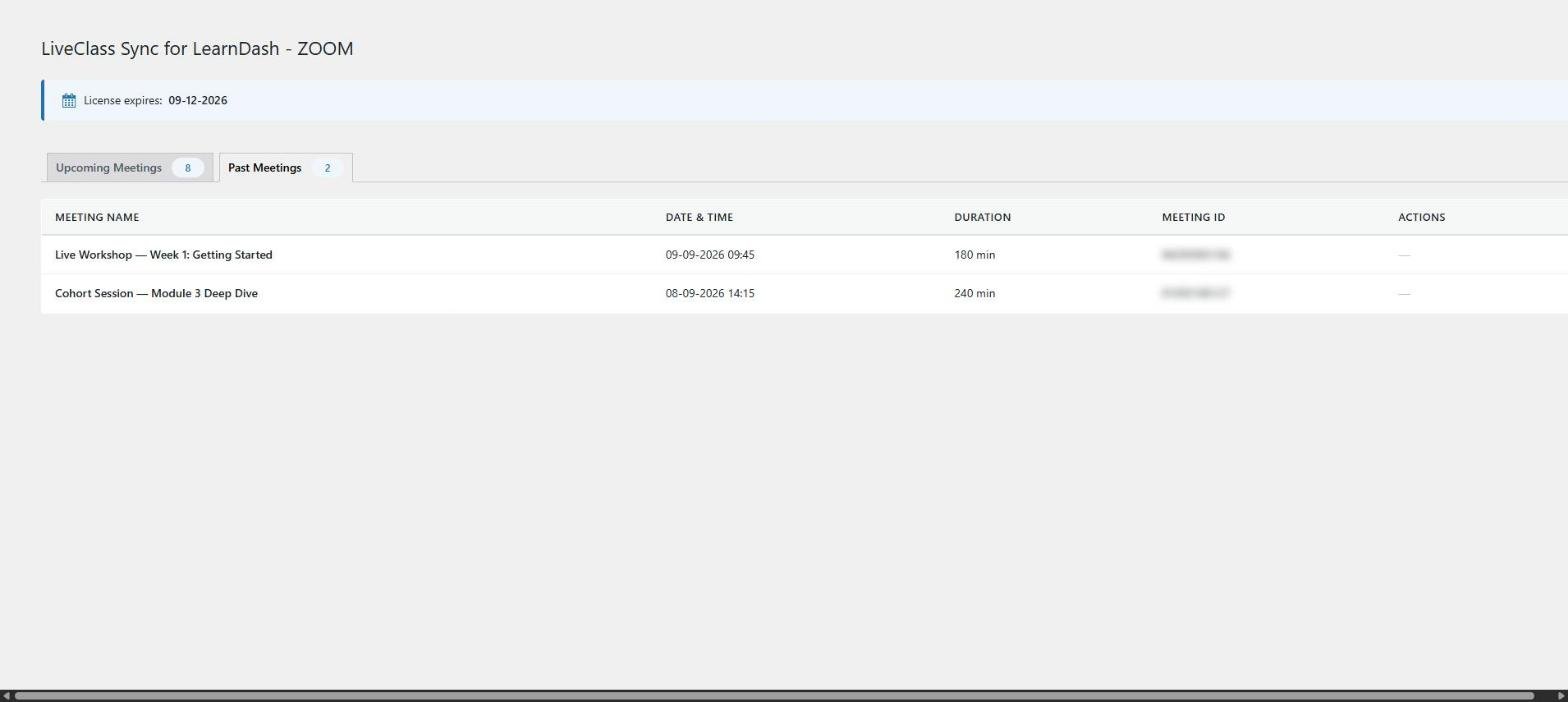
Go to LiveClass Sync in the admin menu to see all upcoming and past meetings, with meeting name, ID, date and time, duration and status. From here you can edit the linked topic or view participants for any past session.
Disconnect Zoom
Go to LiveClass Sync → Settings → Disconnect Zoom Account. This removes the stored tokens. You will need to reconnect before creating new meetings.
5. Troubleshooting
The licence will not activate
Recheck the licence key for stray spaces, and confirm the domain you are activating on matches the one registered to the licence.
Zoom says the redirect URL does not match
The redirect URL in your Zoom app must match the one shown in LiveClass Sync → Settings exactly, including https:// and any trailing slash.
Zoom returns an error about missing scopes
Confirm all six scopes are present on the app, then disconnect and reconnect the account. Existing tokens do not gain new scopes when the app is edited — this is the single most common cause of scope errors.
Attendance is not being recorded
Meetings are created but nobody is marked complete. Check that event subscriptions are switched on in the Zoom app, that the webhook URL matches the one in the plugin settings, and that the Secret Token has been entered in WordPress.
Students cannot join in the browser
Browser join needs a separate Meeting SDK app. Verify the SDK Client ID, Secret and redirect URL. If you do not need in-page joining, students can join in the Zoom app with no extra setup.