Zoom attendance report after a meeting: where to find it and what it shows
Zoom builds an attendance report for every meeting, but it is not on the meeting page, it is not instant, and it does not always show what you expect. Here is where to find it, what is in it and why some rows come out blank.
Running these classes inside a LearnDash course? LiveClass Sync reads this report for you after every meeting and marks the topic complete for students who attended long enough. Watch the one-minute demo.
Where to find the report
- Sign in to the Zoom web portal (not the desktop app) with the account that hosted the meeting.
- Open Reports in the left menu and choose Usage Reports, then Meeting.
- Pick a date range and search. Past meetings appear in a list.
- Open the meeting and use the participants view, or generate the report for it.
Reports are a feature of paid Zoom plans. If you do not see the Reports menu, check your plan and your role on the account.
What the report contains
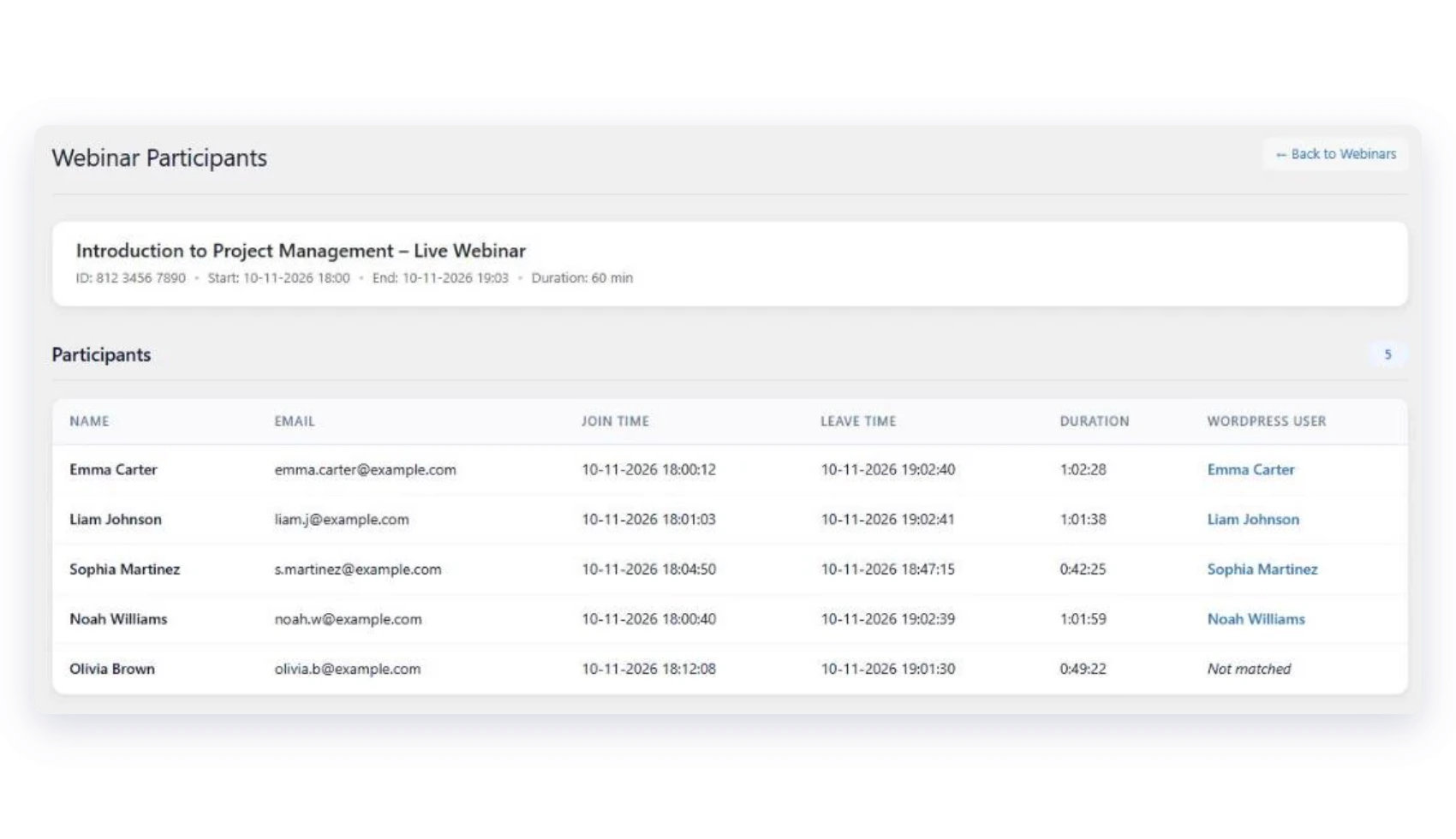
- The participant name as it was displayed in the meeting
- The email address, when Zoom has one (see below)
- The time each person joined and the time each person left
- The duration, in minutes
One person can appear on several rows. Anyone who drops out and comes back, or who joins from a phone and a laptop, creates a new row each time.
Why it is not there right after the meeting
The report is generated after the meeting ends. It usually shows up within minutes, but it can take longer for large meetings. If the meeting is still running, or someone is still connected, the report is not final. Wait until everyone has left before you rely on it.
Why some emails are blank
Zoom only knows an attendee’s email if they signed in to a Zoom account or registered for the meeting. A student who clicks a link and joins as a guest with a typed name has no email on the report. This is the most common reason attendance cannot be matched to a student.
Two things reduce the problem:
- Turn on registration, or require authentication, so Zoom records an email for each person.
- Tell students to join with the same email address they use on your site.
How long reports stay available
Zoom keeps usage reports for a limited period and only lets you query a limited date range at a time. If you need attendance records for certification, compliance or disputes, do not rely on Zoom to hold them. Export the report or store the data somewhere you control.
Reading the report correctly
- Add up duration per person. A student with three rows of 20 minutes attended for 60 minutes, not 20.
- Compare against the session length, not the schedule. If the class ran 50 minutes, 45 minutes is 90%.
- Ignore the host and any assistants when you work out who attended.
- Watch for names that do not match your roster. Students often join as “iPhone” or with a nickname.
What to do with it in LearnDash
LearnDash does not read this report. By default, someone has to open it, compare it with the course roster and mark each topic complete by hand. The built-in Blended Learning feature gives you a place to record attendance, but you still enter it yourself.
LiveClass Sync reads the report through the Zoom API after the session ends, matches attendees to WordPress users by email, adds up multiple rows per person, and completes the topic for students who reach the percentage you set. It supports Zoom Meetings and Zoom Webinars; webinars need the Zoom Webinar add-on. If you want to do it by hand, this guide to exporting and cleaning the participant list walks through the steps.
Common questions
The Reports menu is missing or the report is empty
Reports need a paid Zoom plan and the right role on the account. If you were a co-host or an alternative host, the report usually sits under the account of the person who scheduled the meeting. On a free plan there is no participant report at all; see how to see who attended a Zoom meeting without the report.
Someone left and rejoined. Do they count twice?
They appear on two rows, one per connection, but they are one person. Add their minutes together, ideally by email address, before you compare with your minimum.
Where is the report for a Zoom webinar?
Webinars have their own reports in the same Reports section, including an attendee report. Webinars need the Zoom Webinar add-on. How webinar attendance differs and how to get it into LearnDash: Zoom webinar attendance in LearnDash.
Can I see who is attending while the meeting is running?
Only in the Participants panel during the meeting. The report is final once the meeting has ended and everyone has left.
Can I get attendance into LearnDash without opening the report?
Yes. LiveClass Sync reads the attendance from Zoom after every session and completes the LearnDash topic for students who stayed long enough, so nobody downloads or checks the report.
See it in one minute
A short video shows a LearnDash topic linked to Zoom, the attendance coming back after class and the topic completing by itself.
More information
A one-minute demo is on the homepage. Setup steps are in the documentation. For the three ways to handle attendance in LearnDash, see How to track Zoom attendance in LearnDash.