How training providers track live Zoom CPD attendance in LearnDash
For live CPD to count, you need a record that each delegate attended, and for how long. Zoom has that data and LearnDash has the course, but the two do not talk to each other. This guide shows how providers close the gap, by hand and automatically.
What an accrediting body usually wants to see
Rules differ between bodies, so check yours. Most ask for some mix of:
- who attended each live session, identified by name and email;
- how long each person was present, or whether they reached a minimum share of the session;
- a completion or certificate record that follows from that attendance;
- records you can produce later if a delegate or an auditor asks.
Self-declared attendance (“I was there”) is the weakest evidence. A join and leave log from the meeting platform is much stronger.
The manual route
- After each session, download the participant report from Zoom (Reports, Usage Reports, Meeting). The steps are in how to export a Zoom participant list.
- Add up the minutes for anyone who left and rejoined.
- Compare each total with your minimum, for example 80% of a 90-minute session.
- Mark the matching LearnDash topic complete for every delegate who qualifies.
- Keep the CSV file somewhere safe as your evidence.
This works. The cost is time and mistakes: 20 delegates and three sessions a week is an hour or more of admin, and one missed rejoin row can fail someone who actually stayed.
Where it goes wrong
- Different email addresses. A delegate books with a work address and joins Zoom from a personal account. Their attendance then belongs to nobody. Ask delegates, at booking, to join Zoom with the same email they used to register.
- Guests without a Zoom login. They appear with a name and no email, so you are left matching by name.
- Two devices. A laptop and a phone give two rows for one person.
- The report is not ready straight away. Zoom builds it some time after the meeting ends. See where to find the Zoom attendance report and what it shows.
The automatic route
LiveClass Sync connects Zoom to LearnDash so the steps above happen without you:
- Each live session is a LearnDash topic linked to a Zoom meeting or webinar.
- You set the minimum attendance for that topic, for example 80%.
- After the session, the plugin reads the attendance from Zoom, matches delegates to their WordPress accounts by email, and combines rejoins and second devices into one total per person.
- Delegates at or above the minimum get the topic completed. Anyone below it stays incomplete.
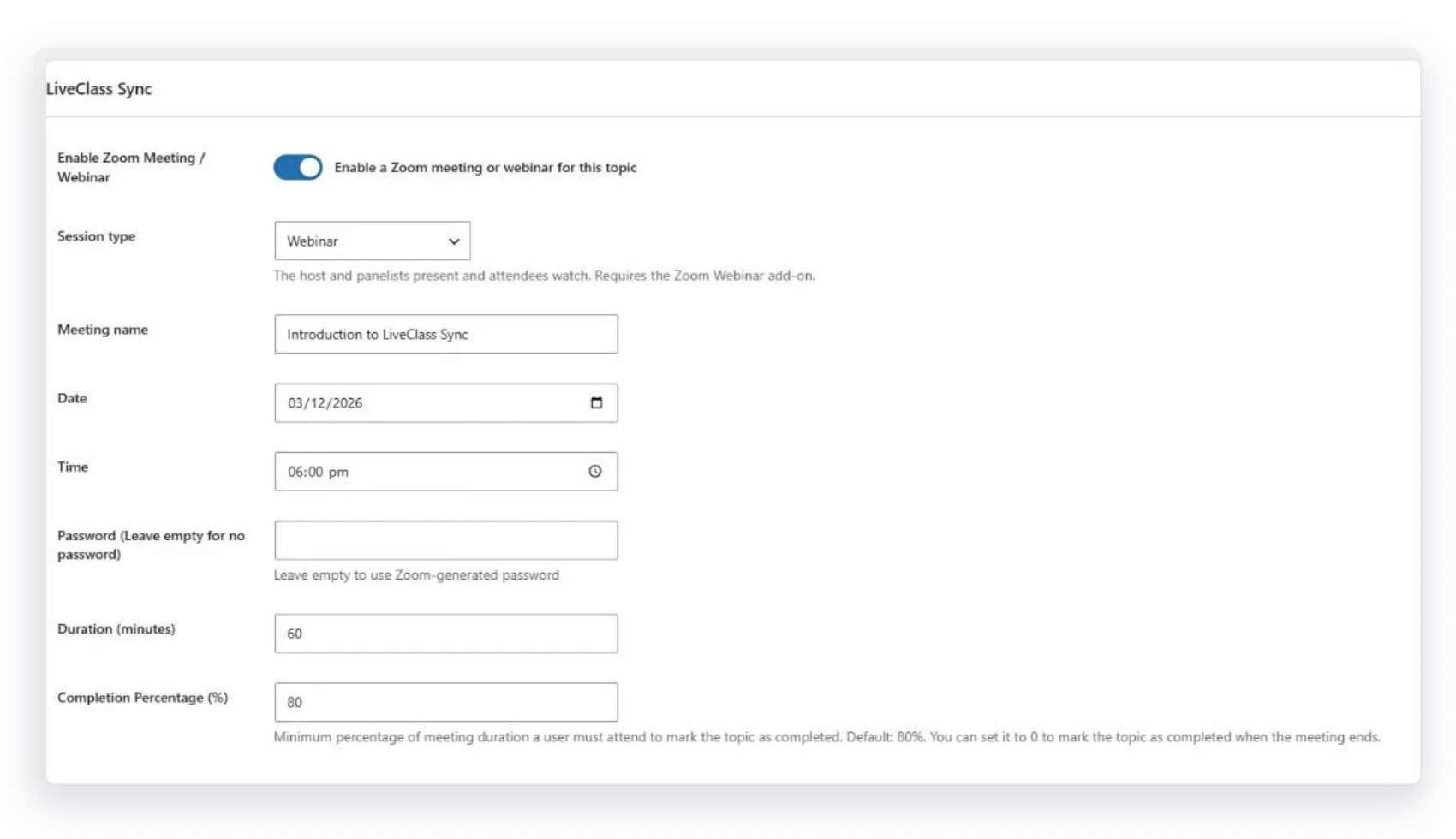
Join and leave times stay in your own WordPress database as a permanent log, and you can export any session’s participants to CSV when an accreditor asks. Zoom webinars need the Zoom Webinar add-on and a webinar-licensed host. The email advice above still applies: no tool can match a delegate who joins with a different or blank email.
Choosing the threshold
Use the figure your accrediting body sets. If it sets none, a figure around 75 to 80% leaves room for a late start or a dropped connection without crediting someone who left halfway. More on this in how to set a minimum attendance requirement for a LearnDash live class.
Certificates
Because the live topic only completes when the delegate qualifies, a LearnDash certificate tied to course completion only goes to people who met the attendance rule. For a full course structure, see running a LearnDash certification course with live Zoom sessions.
More information
A one-minute demo is on the homepage and the setup steps are in the documentation.