Does Zoom send meeting reminders? How to remind students before a live class
You scheduled the class, shared the link, and half the students still forget to turn up. Zoom does not help much here: regular meetings get no reminder emails. Here is what Zoom actually sends, what a good class reminder contains, and how to send reminders automatically if your course runs on LearnDash.
Short version: Zoom sends scheduled reminder emails for webinars with registration, not for regular meetings. For a meeting, students get a confirmation email at most (only if you require registration). To remind students before every class you need a calendar invite, your own email, or a tool that knows your class schedule. In LearnDash, LiveClass Sync emails enrolled students 24 hours and 1 hour before each class. Watch the one-minute demo.
What Zoom sends, and when
The answer depends on whether you run a meeting or a webinar, and whether registration is switched on.
| Session type | What participants get from Zoom |
|---|---|
| Meeting, no registration | Nothing. You share the invitation yourself, and any reminder comes from the participant’s own calendar if they added the meeting to it. |
| Meeting with registration | A confirmation email with the join link when they register (or when you approve them). Zoom’s meeting email settings offer the confirmation, but no scheduled reminder before the start. |
| Webinar with registration | A confirmation email, plus an optional reminder email 1 hour, 1 day or 1 week before the start. This needs the Zoom Webinar add-on. |
| Zoom app notification | The Zoom desktop and mobile app can show an “upcoming meeting” notification, but only to people signed in to Zoom whose calendar holds the meeting. Most students are not. |
Sources: Zoom’s help articles on scheduling a meeting with registration and upcoming meeting reminders, and its webinar email settings (“Send reminder email to approved registrants and panelists”).
So for a weekly class run as a Zoom meeting, which is how most courses run, nobody gets a reminder unless you send it.
Why a reminder is worth the trouble
Most no-shows are not students who decided to skip. They forgot, confused the time zone, or could not find the link ten minutes before the start. A reminder fixes all three. If attendance decides whether a student completes the lesson, as it does for CPD hours or certification courses, a missed class also means a support email and a manual fix later. A reminder is cheaper.
What a good class reminder contains
- The class name and the course, so students know which of your emails this is.
- The date and time with the time zone written out, for example “18:00 (Europe/London)”. “6 pm” on its own causes the most confusion in international classes.
- One clear way to join. If students join from your course page, link to the lesson, not to Zoom. Students arrive logged in, the right people get in, and the Zoom link does not end up forwarded around.
- A calendar file (.ics), so the class lands in Google Calendar, Outlook or Apple Calendar with one click. The calendar then sends its own alert.
- Anything to prepare: a worksheet, a camera, a quiet room.
- A reply-to address that a person reads, for “I can’t make it” replies.
When to send it
Two reminders work for most classes: 24 hours before, so students can plan the day, and 1 hour before, so the link is at the top of their inbox. For a class that needs preparation, add one a few days ahead. Do not send more than three; past that, people start to ignore them.
A template you can copy
Subject: Reminder: [class name] starts in 1 hour
Hi [first name],
This is a reminder that your live session “[class name]” in [course name] starts in 1 hour, on [day, date] at [time] ([time zone]).
Join from the lesson page (log in first):
[link to the lesson]
The join button appears on that page a few minutes before the start. Please have [what to prepare] ready.
See you there,
[your name]
Keep it plain text or close to it. Short, plain emails from a real address are less likely to land in spam than designed newsletters.
Ways to send class reminders
1. A calendar invite
Send each student a calendar invitation, or put an “Add to calendar” file in your welcome email. Their calendar app then reminds them. This costs nothing, but it only works if students accept the invite, and it falls apart when a class moves: everyone needs an updated invite.
2. Send the email yourself
Write the template above into your email tool and send it before each class. Fine for a single cohort. With several courses and weekly classes it turns into a job you have to remember twice a week, which is the problem you were trying to solve for your students.
3. LearnDash Notifications
LearnDash’s own Notifications add-on sends emails when something happens: a student enrolls, completes a lesson, a scheduled (drip-fed) lesson becomes available, a course is about to expire. Delays are set in whole days. There is no trigger for “1 hour before this live class”, because LearnDash does not know when your Zoom session starts. You can get close with a drip-fed lesson that opens on the class day, but not an hour-before reminder.
4. An automation tool or CRM
Email marketing tools and automation platforms can send scheduled emails to a list. The catch is the schedule: each class date has to be entered or synced, the list has to match who is enrolled today, and someone has to update both when a class moves. Workable, but it is one more system to keep in step with your course.
5. Automatic reminders in LearnDash with LiveClass Sync
LiveClass Sync is a LearnDash add-on that connects each topic to a Zoom meeting or webinar. Because the plugin knows when each class starts and who is enrolled, it sends the reminders itself:
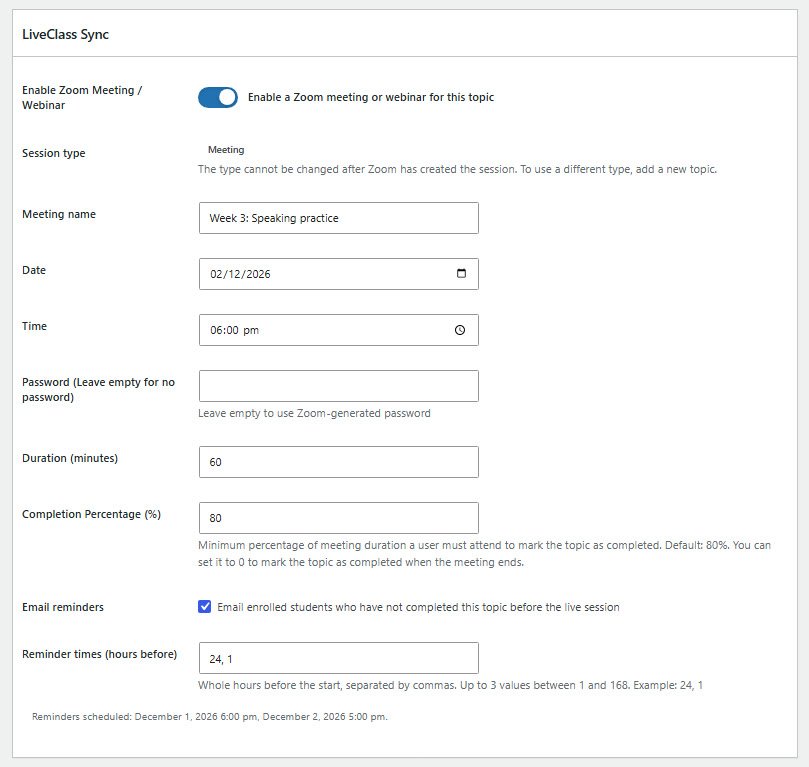
- When you add a live class to a LearnDash topic, its reminders are scheduled: 24 hours and 1 hour before the start by default. Each topic can use its own times (up to three) or switch reminders off.
- Just before sending, the plugin checks who should get it: students enrolled in the course, directly or through a LearnDash group, who have not completed the topic yet. A student who enrolled yesterday gets the reminder; one who already completed the topic does not.
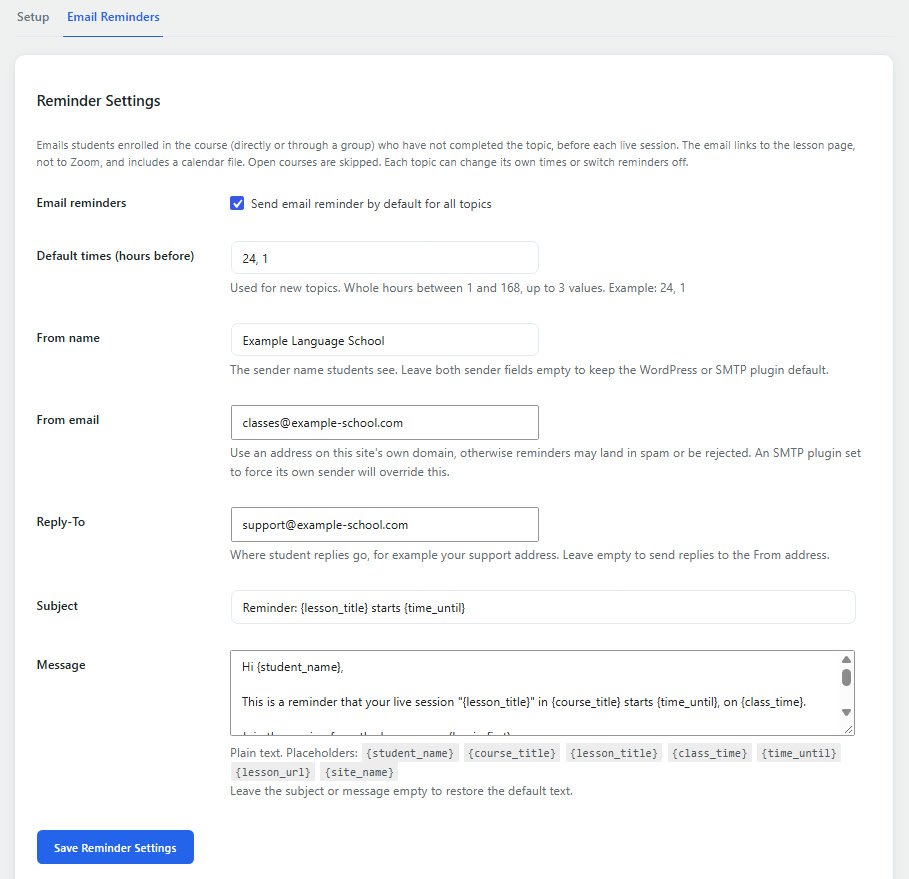
- The email links to the lesson page, never to Zoom, and carries an Add to calendar file. You set the sender, the subject and the message.
- If you move the class in the topic, the reminders move with it. A reminder for the old time is never sent.
- After the class, attendance comes back from Zoom and the topic completes for students who attended enough of it. That part is covered here.
Subject: Reminder: Week 3: Speaking practice starts in 1 hour
Attachment: class.ics
Hi Emma,
This is a reminder that your live session “Week 3: Speaking practice” in Spanish B1 Evening Course starts in 1 hour, on Tuesday 2 December 2026 at 18:00 (Europe/London).
Join the session from the lesson page (log in first):
https://example.com/courses/spanish-b1/lessons/week-3/topic/speaking-practice/
The join button appears on that page 5 minutes before the start. A calendar file is attached so you can add the session to your calendar.
Example Language School
Setup takes a few minutes: open LiveClass Sync → Settings → Email Reminders, set the sender and times, and click Send Test Reminder to see the email in your own inbox. The steps are in the documentation.
Make sure the reminders arrive
Whatever sends your reminders, two things decide whether students see them on time.
- Email delivery. WordPress sends email through your web host by default, and that often ends up in spam. Use an SMTP plugin such as WP Mail SMTP or FluentSMTP with a sending service, and send from an address on your own domain with SPF, DKIM and DMARC set up. Then send yourself a test and check it lands in the inbox, not in spam.
- Timing. WordPress runs scheduled tasks when someone visits the site. On a quiet site a 1-hour reminder can go out late. Ask your host to run WordPress cron from a real server cron job every few minutes. Most hosts have a setting for it.
Honest limits
- LiveClass Sync reminders go to enrolled students. LearnDash keeps no enrolment list for open courses, so those get no reminders.
- Times are shown in your site’s time zone, with the zone named in the email. WordPress does not store a time zone per student.
- Change a class time in the LearnDash topic, not directly in Zoom. A change made only in Zoom does not reach WordPress, so the reminders would keep the old time.
- It needs LearnDash. For Tutor LMS, support is in development.
Common questions
Does Zoom send reminder emails for meetings?
Not for regular meetings. With registration switched on, registrants get a confirmation email with the join link. Scheduled reminder emails (1 hour, 1 day or 1 week before) are a webinar setting.
How do I send a Zoom meeting reminder to participants?
Send it yourself, by email or calendar invite, or use a tool that knows your class schedule and sends it for you. For LearnDash courses, LiveClass Sync sends it automatically to enrolled students before each class.
Should the reminder include the Zoom link?
If students join from your course, link to the lesson instead. They log in first, so only enrolled students get in, and attendance is matched to the right account. A raw Zoom link in an email is easy to forward.
How long before a class should I send a reminder?
24 hours and 1 hour before works for most classes. Add one a few days ahead if students need to prepare something.
More information
A one-minute demo is on the homepage. For the attendance side, see how to take attendance in Zoom automatically and how to set a minimum attendance requirement. Running webinars? See Zoom webinar attendance in LearnDash.